

This lesson contains 2 parts:
- PaceMyDay workflow
- Workflow settings
PaceMyDay workflow
We suggest the following 10-step workflow to help you get the most out of the PaceMyDay app.
STEP-BY-STEP: PaceMyDay workflow
- From the MyDay screen, tap Plus (+).
- Add tasks from PaceMyDay (or one of the other apps within the BEST Suite).
- Add or skip a reminder for the task.
- Tap desired task and review details.
- Tap Get Started.
- Respond to pre-task physical, mental well-being, and energy questions.
- Choose optimal or modified duration.
- Work on task.
- Respond to post-task physical, mental well-being, and energy questions.
- Decide whether to take a break or continue.
Workflow settings
The PaceMyDay app prompts you to respond to several emotional/behavioral scales both before you begin and after you work on each task. Not every scale will be appropriate based on your needs, so it is important to take just a moment to customize the scales before you begin using the PaceMyDay app.
STEP-BY-STEP: Customizing emotional/behavioral scale settings
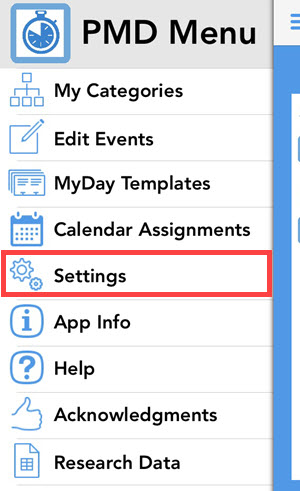
1.Tap PMD Menu (More).

2. Tap Settings
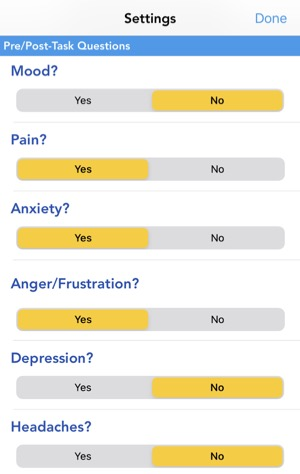
3. Tap the appropriate responses based on your personal emotional/behavioral challenges. For example, if you want to track your pain level before and after a task, tap Yes under Pain. If pain isn’t an issue for you, tap No.
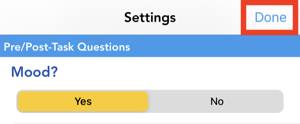
4. Tap Done.